
When working with data, there is a saying: "Garbage in, garbage out." This means that flawed input inevitably produces flawed results. In the world of construction estimating and digital takeoffs, this rule applies doubly. You can spend hours meticulously tracing every room, wall, and roof section on a floor plan, but if your initial scale calibration is off, your entire material budget will be wrong from the very start. Don't worry, this can be fixed!
Digital drawings—whether they are scanned JPEG images from an old archive, or vector PDFs poorly exported from CAD software—often do not have reliable information about scale and thus do not know what a meter or a foot is. Their coordinates are represented by pixels and points. Calibration is the bridge that connects these digital points to real-world units.
Let’s look at how calibration works in practice, what the most common mistakes are, and how to get numbers you can rely on using MeasureCAD.
In digital takeoffs, even a tiny 2% calibration variance can seem negligible on your monitor—and for a simple wall length, it stays a manageable 2% error. But the moment you start calculating areas or volumes, that minor error sneaks up on you because it multiplies across multiple dimensions. The table below demonstrates how a 2% calibration error multiplies:
| What you are measuring | The Math | Actual Variance |
|---|---|---|
| Lengths (Linear) | 1.021 | +2.00% |
| Areas (Square) | 1.022 | +4.04% |
| Volumes (Cubic) | 1.023 | +6.12% |
In short: A minor 2% baseline variance on a blueprint takeoff doesn't just mean a few inches off a single wall—it automatically bumps your flooring area by over 4% and pushes your concrete volume over 6% out of line. On a $50,000 material order, a 6% volume variance mistakenly burns $3,000 on materials you don't even need.
The 3 Most Common Calibration Pitfalls (And How to Avoid Them)
1. Short Reference Line
While it is tempting to grab the nearest known dimension on a drawing to calibrate your scale—such as a 0.6-meter bathroom door or a small window frame—it is usually not worth it. This might be fine for a quick estimate, but for professional work you should be aware: this is where an unnecessary scaling errors creep in.
Why? Because any clicking inaccuracy carries immense percentage weight on a short line. If you apply that skewed scale to the rest of the project, every single length measurement gets corrupted, and as noted above, the impact on your area and volume calculations multiplies fast.
Imagine calibrating a drawing using the width of an interior door (which spans, say, 50 pixels on your screen). If your click misses the mark by just 5 pixels due to grid rounding or a shaky hand, you introduce a massive 10% error into your entire takeoff. However, if you choose a long exterior wall for calibration (spanning, say, 1,000 pixels), that exact same 5-pixel variance represents an error of only 0.5%, resulting in much higher overall accuracy.
Pro Tip: Always calibrate using the longest possible known dimension—such as a main building length or the sum of a few dimensions. A longer reference line minimizes the margin of error caused by imprecise clicking, pixelation, or coordinate discretization (rounding errors that occur when drawings are exported to PDF or raster formats).
2. The Title Block Trap: Blindly Trusting Printed Blueprint Scales
Many blueprints come with a printed scale block in the corner (e.g., 1:100 or 1/4" = 1'-0"). However, entering these ratios blindly into measuring software can easily backfire.
The reality of digital drawings is that not all PDFs are created equal. Every CAD software handles PDF generation differently, which can alter the final document scale. If a document was slightly resized during export, or combined from various sources, the actual visual ratio on your screen will no longer match the text in the title block. Manual graphical calibration—clicking two points of a known, long dimension—is always the safest way to double-check what is actually on the page.
3. The Multi-Page Uniformity Assumption
Large construction projects usually contain dozens of pages compiled into a single PDF document. It's a common trap to assume that all pages share the same scale. The foundation plan might be 1:50, the main floor plan 1:100, and the detailed sections 1:20.
In MeasureCAD, we solved this by making calibration page-specific. The app will warn you with a prominent Not Calibrated sign if the current page has not been calibrated yet.
How MeasureCAD Helps You Handle Imperfect Drawings
To eliminate complex manual scale calculations and avoid the risks of trusting inaccurate printed title blocks, MeasureCAD features a dedicated  Calibration Tool. It operates by establishing a reference line—simply select two points of a known length within the uploaded drawing and input their real-world dimension. The software instantly adjusts the scale, ensuring that all subsequent length, perimeter, and area measurements perfectly match the set scale.
Here is an overview of the key app features that help you maintain absolute accuracy:
- Maximum Zoom on Vector PDFs and Thin Lines Mode: MeasureCAD allows you to zoom in closely on any selected area of a vector PDF drawing. By default, the thin lines mode is activated, letting you inspect the actual quality of the PDF document. At high zoom levels, you will often notice that lines from lower-quality CAD exports don't actually intersect perfectly in corners or might be slightly distorted. Seeing the true state of the line allows you to manually select the most logical click point instead of guessing. You can activate the real line thickness (as shown in classic PDF viewers) via the View ➔ True Line Thickness option in the main menu.
- Multi-Page Calibration Sync: If you are completely certain that a multi-page document uses the exact same scale across all sheets, you don't need to calibrate each page manually. Simply calibrate the first page and click "Apply to all pages" in the tool settings. The scale will be instantly copied to all other sheets.
- Real-Time Measurement Recalculation: Made a mistake or found a better, longer reference line later on? Don't panic. If you re-calibrate the page, MeasureCAD automatically recalculates all existing measurements on that page in real-time, ensuring your hard work never goes to waste.
Step-by-Step: How to Calibrate a Drawing in MeasureCAD
Calibrating a plan or image is a straightforward process that takes less than a minute but sets the foundation for your entire takeoff. Here is how it is done in practice:
- Activate the Calibration Tool from the toolbar.
- Find a line with a known dimension on your plan (such as a long foundation wall).
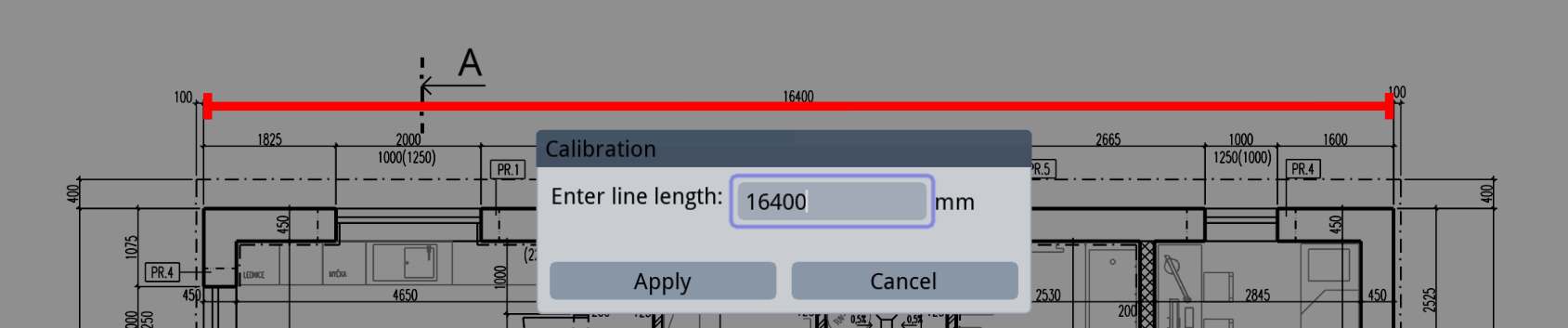
- Click on the start point of that dimension, then click on the end point to define your reference line.
- A text box will appear instantly. Enter the real-world length of the line in millimeters for metric or feet for imperial system. Alternatively, you can write the unit directly into the text box and it will be automatically converted to the base unit.
- Click Apply. Your drawing status will change from Not Calibrated to Calibrated, and you are ready to measure!
- It is a good practice to check the scale, e.g., by measuring the calibration line using Line Length Tool. If necessary, you can repeat the calibration process at any time using the same steps. All existing measurements will always automatically recalculate based on the updated scale.
The Bottom Line
At the end of the day, your final estimate is only as good as your initial scale. Spending an extra minute to zoom in, inspect the drawing quality, and calibrate across a long, reliable reference line is the easiest way to keep your material quantities realistic.