
Automatic count takeoff
Count symbols on a PDF drawing from one sample
Show MeasureCAD one socket, door or fixture, and it marks the similar-looking symbols on that page. You review the marks, drop any wrong ones with a click, and the count is added to your table of quantities.
Currently free · No account · Files stay on your device


What you get free
Symbol counting right in your browser
Counting repeated symbols by sample is often part of a paid subscription, or runs in the cloud on your uploaded drawing. In MeasureCAD it runs in your browser, and today it is free.
- “Find similar” is currently free. There is no limit on the number of searches or measurements. It is intended for professional users, and in the future it will be available with a license for a reasonable fee.
- Your drawing stays on your device. The search runs in your browser, like the rest of MeasureCAD, and the drawing is not uploaded.
- No account, nothing to install. Open the page, load a vector PDF and count.
- In the table at once. The count is a measurement like any other: it is a row of the table of quantities, and a unit price turns it into a cost.
How it works
Automatic count takeoff: pick one symbol, review the rest
Doors, outlets or fixtures on a blueprint usually repeat dozens of times, and counting them by hand means a click for each. Here you show the symbol once and the search finds the places that look like it.
Pick a sample
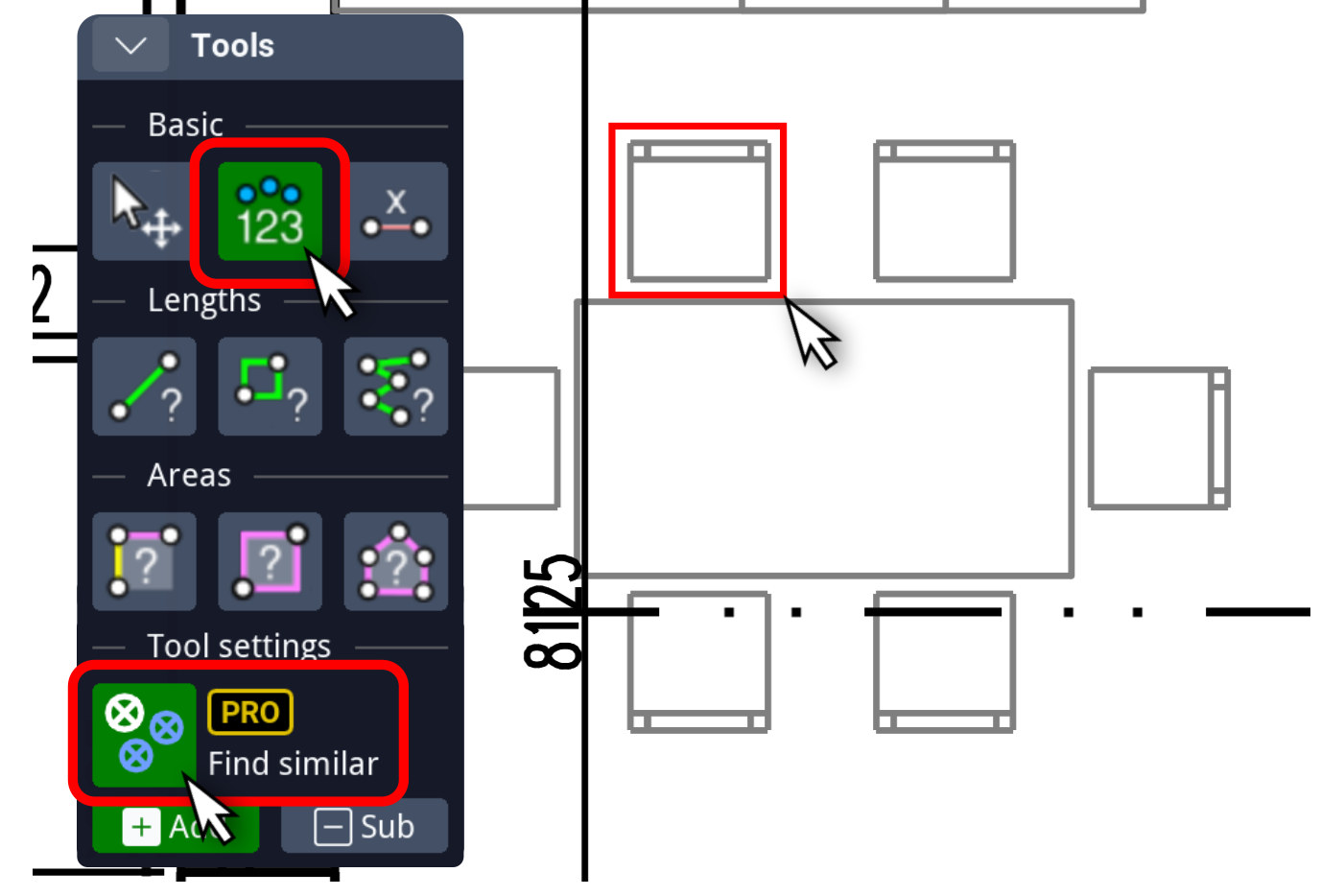
Select the Pieces Counting tool and click the “Find similar” button at the top of its settings. Then paint over one symbol, or click two corners around it. The lines MeasureCAD will compare turn orange.
Review what it found
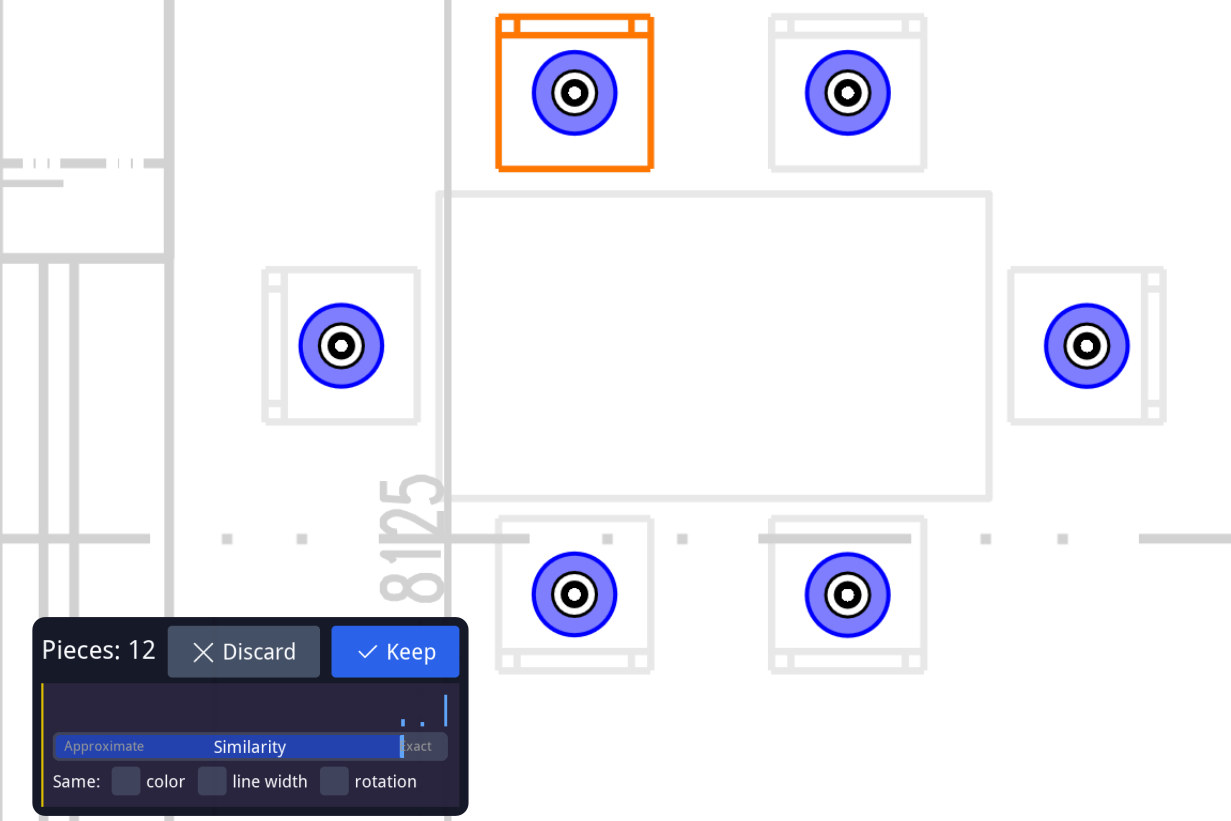
The matching places appear as markers, and their number shows in the quantity bar. Paint over more of the symbol, or remove a stray line with Ctrl, and the search runs again.
Keep the count
Chairs Table of quantitiesItem Count EUR/pc Total, EUR Chairs 12 pcs 80.00 960.00 Total 960.00 Approximate price of a chair, VAT included.
Press Keep. The count is a measurement like any other, so it is a row of the table of quantities, where a unit price turns it into a cost.


You stay in control
Review the found symbols before you keep them
The search compares the lines of your sample with the lines on the page. It finds places that look like the sample at the same size, also when they are rotated or mirrored, but it does not know what a symbol means. So you see every mark and can remove the wrong ones before the number is added to your table.
- Tune the match. The Similarity slider runs from Approximate to Exact. Towards Approximate, symbols that differ a little are counted too; towards Exact, only exact copies. Same: color and line width leave out symbols drawn in another style, rotation those turned or mirrored, such as doors opening the other way.
- Drop a wrong one. Click a found marker and it is crossed out and not counted; another click brings it back.
- Add a missed symbol. After Keep, a click on the drawing adds a marker, as in normal counting.
- Changed your mind. Discard or Esc removes what the search found. After Keep, one undo reverses the whole search.

The strip with the number of pieces found and the Similarity slider. Click a wrongly found marker to drop it. After pressing Keep, add a symbol the search missed by hand.
Example
11 doors, 10 windows and 12 chairs in one drawing
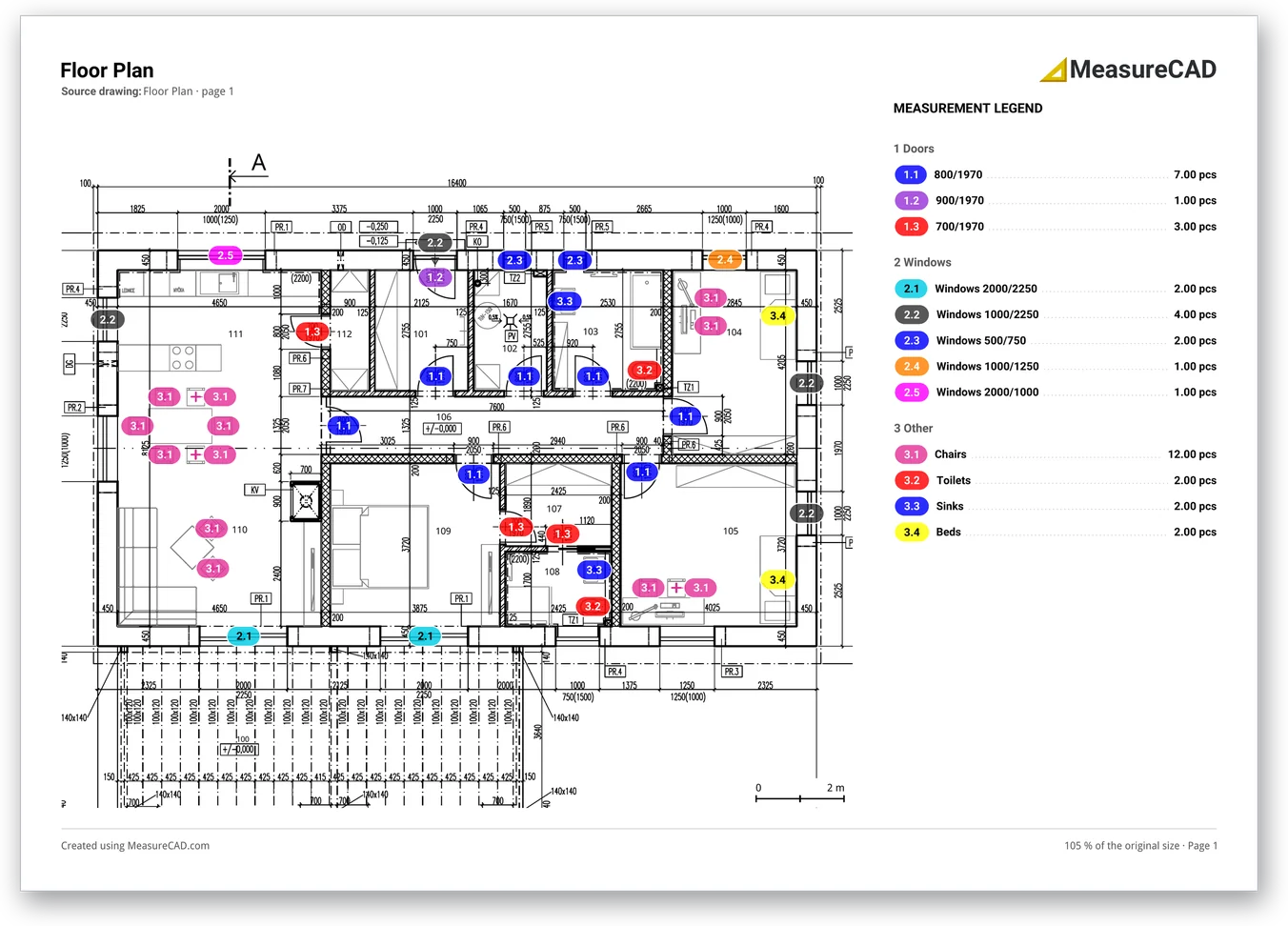
In this drawing, Find similar counted 11 doors in three widths, 10 windows in five sizes, 12 chairs and more furniture. Each kind was searched with its own sample and has its own row in the legend of the export.
Add unit prices and the table gives you the cost. The example shows only a few of the items.
| Item | Count | EUR/pc | Total, EUR |
|---|---|---|---|
| Doors 800/1970 | 7 pcs | 46.00 | 322.00 |
| Windows 1000/2250 | 4 pcs | 330.00 | 1,320.00 |
| Windows 500/750 | 2 pcs | 140.00 | 280.00 |
| Chairs | 12 pcs | 80.00 | 960.00 |
| Total | 2,882.00 | ||
The price of the door leaf comes from a retail price of November 2026. The prices of the windows and chairs are approximate. All prices include VAT.
Questions
Counting symbols on a PDF: what it can and cannot do
Is “Find similar” free?
Currently yes, with no account and no limit on the number of measurements. “Find similar” is one of the advanced Pro features that will in the future be available for professional use with a license for a reasonable fee.
Are my drawings uploaded anywhere?
No. The search runs in your browser, like the rest of MeasureCAD, so your drawing stays on your device.
Can I check what it found, and where is the count saved?
Yes. The found places are shown as markers at once: click a wrong one to drop it, then choose Keep. The count is a measurement like any other, so it is a row of the table of quantities, where a unit price turns it into a cost.
What if it misses a symbol?
Move the Similarity slider towards Approximate, or paint over more of the symbol. After Keep, a click on the drawing adds a marker, as in normal counting, and you can search again with another variant of the symbol: places that already have a marker are not counted twice.
Which symbols does it find?
Symbols that look like your sample at the same size, also when they are rotated or mirrored. Text is not compared, so tags that differ only by a number or a letter count as the same symbol, and a larger or smaller version is not found.
Does it work on scanned plans, and on all pages?
It works on pages of vector PDFs, not on images or scans, and it searches the page you are looking at. On other drawings you can count by clicking.
Count your first symbols
Open a PDF, pick one sample and review what MeasureCAD finds.